Learn what your numbers mean and how to use Mollete to record transactions, make plans and look ahead.
Read the guide from start to finish or jump to the topic you need. The examples use fictional data in Mexican pesos (MXN); they do not change your accounts.
Mollete connects the transactions you record with your balances and what you expect to happen next. The more complete your records are, the more useful your planning will be.
Add an account. Choose its type and currency, then enter the appropriate opening balance.
Record income or an expense. Select the account, amount, dates and status.
Schedule recurring transactions. For example, your salary, rent or subscriptions.
Review Home and Projection. Check that your records match what you expect.
An example to follow throughout the guide. Alex has $5,000 in a debit account. On September 3, Alex expects to spend $1,000 and will receive $3,000 on September 5. We will look at those transactions first, then use a budget and savings as separate examples.
On iPhone, navigate through the app's main sections. On Mac, use the sidebar; Accounts and Plans also let you open their details directly.
An account represents a place where you track money or debt. Use recognizable names, such as “Everyday debit” or “Cash”.
Type
What it represents
Debit / Cash
Your own money. Posted income increases the balance; a posted expense reduces it.
Credit / Store card
Card purchases and debt. Available credit is purchasing capacity, not your own money.
Other account
A non-credit account for other money records.
Why is an account missing from Home?
Open its details and check whether it is included in balances and projections. Turning this off preserves the account's history and balance but excludes it from Home totals and charts. For cards, it also excludes their projected obligations.
Currency
Check the currency when you create accounts. Mollete does not convert exchange rates: adding amounts in different currencies is not the same as converting them to a common currency.
A transaction records income or an expense in an account. Use the add button to enter its description, amount and account; check the dates and status before saving. You can classify it by category, counterparty or budget. The app's Movements section lets you browse these records.
Status
What it means
Applied
Already affects the account's recorded balance. A posted card purchase can still be unpaid.
Future
Expected to happen. Included in the projection when applicable, but not yet in the posted balance.
In progress
Not posted yet. A card expense may reserve available credit.
Canceled
Excluded from balances and projections.
Two dates with different purposes
Transaction date: when the transaction takes place. Movements uses this date by default to organize the period.
Payment date: when payment is expected. Home summaries use this date, so a purchase may appear in a different period from its transaction date. Movements also lets you browse by payment date.
Transfers and card payments
Use their dedicated actions. A transfer records an outflow from one account and an inflow to another; between two included accounts, it creates no ordinary income or expense. Entering both sides manually as separate ordinary transactions can distort your reports.
Line items
If a purchase covers several things, split it into line items with their own classification. Check that the amounts add up to the transaction total. Line items are not additional purchases.
A place to organize recurring transactions, expected spending and savings.
Plans brings together Budgets and Savings. Use the add button to create a plan. To schedule income or expenses, use Repeat in the transaction form and review them in Movements.
Creating a plan does not mean money has moved. Each tool has a different effect: recurring transactions generate records, budgets project their remaining amounts, and savings track money you set aside within your accounts.
05 · Recurring transactions
Recurring income and expenses
A recurring transaction schedules income or expenses you expect to repeat. It helps you anticipate salary, rent, utilities or subscriptions without entering each occurrence from scratch.
Create a transaction and enable Repeat.
Choose income or expense, the account, description and amount.
Set the first date, frequency and repetition conditions.
Review the upcoming transactions and save. Use Movements to browse your recurring records.
Example: scheduling your salary helps show when your balance could increase. Monthly rent helps anticipate when it will decrease. Check the actual frequency and dates shown in the app.
Scheduled does not mean paid
When the transaction happens, check its amount and mark it as Applied. Scheduling something in Mollete does not charge a subscription, transfer money or make a bank payment.
What happens if I stop including it?
A regular recurrence can be paused in balances and projections without deleting its definition. This does not cancel a service with its provider. If you edit or cancel a recurrence, review which transactions the app says will be affected.
Installments help you track a purchase paid over several payments. Enter the total, card and number of installments; review the dates before saving.
Example: a $6,000 purchase in six installments allocates $1,000 to each payment. If the total does not divide evenly, cents are distributed while preserving the total purchase amount.
Installments represent debt you have already incurred and remain included in the projection. They do not have the pause option available for regular recurring transactions.
Record the payment to the card separately using the card payment action. Avoid entering it as another ordinary expense: you are not making the purchase again.
A budget groups transactions for a purpose and period. It can be one-time or repeat across periods. For an expense budget, Mollete allows for the possibility that you will spend the full budgeted amount.
In Plans, add a budget of the type you need.
Set its name, amount, direction and dates; configure repetition if needed.
Assign the budget to the transactions or line items that belong to it.
Open its details to review usage and the remaining amount.
How does it “set aside” money?
It includes the remaining amount in the projection at the end of the period. It does not withdraw money from your bank or create a real transfer.
Example: groceries
Amount
Budget for the period
$3,000
Assigned transactions
$1,000
Remaining amount projected at period end
$2,000
Assigned transactions are already included according to their own rules. The remaining amount covers what is left of the full budget; another $3,000 is not added on top of the $1,000 used. If assigned amounts exceed the budget, the remaining amount is zero.
Budget usage includes assigned transactions and line items even if they are not posted yet. “Used” does not always mean money already paid.
Close, cancel or pause
Action
Effect
Close
Ends the active budget today and sets its remaining amount to zero. That remaining expense is no longer projected.
Cancel
Removes the projected remaining amount and unassigns future transactions from the cancellation date, including their line items.
Exclude from projection
Temporarily excludes the remaining amount. Preserves usage and assigned transactions.
Expire with an amount left
You can keep the projected remaining amount or set it to zero.
Removing a remaining expense amount may increase your projected balance because you no longer expect to spend it. You have not received income or recovered an expense that already happened.
For income budgets, the remaining amount follows the income direction. The “spend it all” example applies specifically to expense budgets.
For example: budget MXN 2,000 for fuel and record MXN 1,000 linked to that budget. MXN 1,000 remains planned. The total accounted for is still MXN 2,000; additional expenses can change your forecast.
08 · Build your savings
Savings and contributions
Personal savings track money you set aside within your accounts. You can define a target amount and period or choose open-ended savings.
In Plans, add personal savings.
Choose a name and currency, then set a target and dates if needed.
Open the details and choose Save, specifying the account, amount and description.
Review the funds set aside and use Release when you want to make some available for other purposes.
Example: Alex has $5,000 in a debit account and saves $2,000 toward a $12,000 trip. The account's total balance stays at $5,000; $2,000 is set aside and $3,000 remains available for other purposes.
Saving does not make a bank transfer. It reduces the available money shown after savings, but does not change your account's total balance or projection. It does not physically block spending in your bank account. Releasing savings increases the amount available for other purposes without creating income.
Use a non-credit account in the same currency as the savings. New contributions require enough available money in that account, considering your other savings. To actually move money between bank accounts, make the transfer through your bank and record it in Mollete.
Scheduled contributions
Enable Schedule contributions to choose an amount, frequency and first date. When a contribution is due, the app shows that it is time to save. Funds are set aside only when you confirm Save; a scheduled contribution is not an expense or an automatic bank transfer.
Edit or cancel
Editing or deleting a contribution changes how much is set aside. Canceling savings releases the remaining amount while preserving history. Reaching a target does not automatically change the plan's status, and expiration does not automatically release the money. Currency changes are restricted while linked records exist.
A shared budget or savings plan lets you coordinate a purpose with other people. In Plans, enable the collaborative option when creating it, or join a plan through an invitation.
Review the amount, period, participants and agreement in the details. Shared plans can use Free mode or shares, with optional settlements. The target amount is distinct from the money participants have actually contributed.
Free and Pro
Creating and managing a plan requires Mollete Pro. On iPhone, Free accounts can join and contribute while the owner has Pro. Each plan supports up to eight participants, including the owner. If the owner’s Pro expires, everyone keeps read access and history until renewal; guests can still leave. This does not enable backup or sync for your personal finances.
On iPhone, Free includes 3 accounts, 20 categories, 3 active one-time budgets, 1 active savings goal and 5 active recurring plans. Transactions, notes, and savings contributions or releases have no quantity limit on Free or Pro. Check the app for localized pricing and the higher Pro quotas.
What is shared?
A shared contribution may include its description, date, amount, counterparty and author. It does not reveal the private account or category. Review what you are about to share, including the description, before contributing.
These features depend on your session, permissions, plan limits and synchronization. If an invitation or contribution is missing, check your connection and sync status.
Do you share expenses, but one person ends up paying more?
Agree on each person’s share and record who pays. In budgets with assigned shares and settlements, Mollete compares what each person paid with their share of each expense and calculates the balance to settle. Fictional example: with MXN 18,000 in shared expenses split 50/50, each person’s share is MXN 9,000. If one paid MXN 15,000 and the other MXN 3,000, the second owes the first MXN 6,000. This records your agreement; Mollete does not transfer the money.
10 · Understand your numbers
How to read the projection
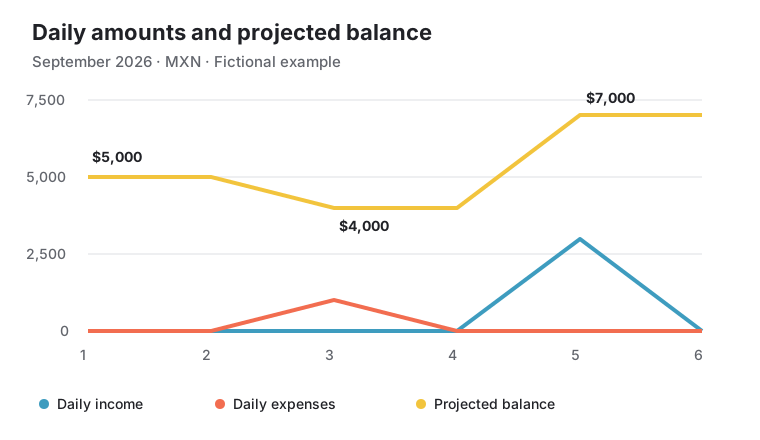
Income and expenses show what happens each day. Projected shows the balance you would have left.
The chart starts from a previous balance and includes recorded transactions and commitments that participate in the projection. Recurring transactions make it especially useful, but it can also include one-time transactions, card obligations and remaining budget amounts.
Daily incomeDaily expensesProjected balance
Illustration of the fictional example below, in MXN. Colors use Mollete's standard palette; the app's appearance may vary with your theme.
Blue: income on each day
If you expect to receive $3,000 on September 5, that day shows $3,000 in income. If there is no income on September 6, it shows zero. Returning to zero does not mean that money disappeared: it means no income was recorded for that other day.
Red: expenses on each day
If you have a $1,000 expense on September 3, the red series shows that amount on that date. If there are no expenses the following day, it returns to zero. Several expenses on one day are combined into its daily amount.
Yellow: the balance you would have left
This keeps the cumulative effect. In this simple example: previous balance + income − expenses. If $4,000 remains after an expense, the balance stays at $4,000 until the next recorded change.
Example with no cards or budgets and a $5,000 opening balance
September
Income
Expenses
Projected
Day 1
$0
$0
$5,000
Day 3
$0
$1,000
$4,000
Day 4
$0
$0
$4,000
Day 5
$3,000
$0
$7,000
Day 6
$0
$0
$7,000
On September 3, red rises and yellow falls. On September 4, red returns to zero, but yellow stays at $4,000. On September 5, blue and yellow rise; after that, blue returns to zero while yellow stays at $7,000.
The current balance reference
The dotted blue line and its amount provide a reference for the current balance shown in the app's chart. They do not represent additional income; they let you compare it with the projected balance over time.
View it in Mollete
Open Projection on Home. If it is hidden, enable it in Edit sections.
Choose the period you want to review.
Use the series controls to show or hide income, expenses and projected balance. Hiding a line only changes its visibility.
Select a date on the chart to view its amounts. Points represent individual days; the curves between them are smoothed.
Why does it differ from today's available money?
Money available today is the balance in included non-credit accounts after subtracting funds set aside for savings. The projection includes commitments such as card payments on their planned dates and remaining budgets at period end. Savings contributions do not reduce the projected balance.
What if the balance is negative?
Based on the included records, outflows and commitments exceed the balance and inflows by that date. Review transactions, included accounts and budgets. This is an estimate based on your records, not a guarantee of what will happen in your bank account.
A debit account tracks your own money. A credit card tracks purchases, debt and available credit. Having $10,000 in available credit does not add $10,000 to your money.
Statement closing date: groups purchases into statement periods.
Planned payment: determines when the obligation is included in the projection.
Actual payment: recorded with its date and the account the money came from.
Example: a $1,200 purchase increases debt. Its obligation is projected on the statement's planned payment date. When you record the actual payment, that outflow replaces the corresponding obligation to avoid subtracting it twice.
Record a payment
Use Card payment and choose the paying account, card, amount, date and status. Do not record it as another ordinary expense. A proposed payment that is not yet posted does not mean the money has left the account.
Why do I see different amounts?
Current debt, available credit and the next payment answer different questions. Open the debt breakdown on Home to review each card and its upcoming projected payments. The overall chart may include more future obligations than that summary shows.
12 · Explore your records
Home, reports and search
Money available today shows liquid funds in included non-credit accounts after subtracting funds set aside for savings. Card debt is shown separately.
Period summaries use the payment date and your configured period. A recorded purchase may belong to a different period than the one where you find it by transaction date in Movements.
Expense distribution shows how recorded expenses are split by category, account, counterparty, emoji, need or expense type. Changing the grouping changes the view, not your transactions.
Needs attention brings together transactions that need your review. Check what actually happened before marking them as Applied.
Search helps you find accounts, transactions, budgets, savings and other records. If something is missing, check the period, filters, date type and whether the account is included.
In Settings, review your account and usage, choose currency, manage categories and adjust notifications. Appearance offers Pro customization options. Check the app for your available features and limits.
Notifications
Configure the reminders you need and allow notifications in system settings. These are local reminders: receiving one does not post a transaction or make a payment. If they do not arrive, also check your device's Focus modes and permissions.
Local data and synchronization
Mollete stores information locally. Syncing it between devices depends on your session, Pro access and connection. Check the cloud icon on Home; do not assume another device has received a change that is still pending.
Does your phone screen feel too small?
Review your expenses, budgets and cards with more room in the Mac app or in your browser. Sign in with the same account to sync your data. Access on Mac and web requires Mollete Pro.
App lock
You can enable a local lock using device authentication. It does not replace your Mollete session or the device's own security.
Help and support
On iPhone, open Settings → Help; on Mac, use the Help menu (⌘?). The online guide is available in Spanish and English. The offline copy included in the current app is in Spanish. To contact the team, use Support in Settings. When reporting a difference, include the screen, period and steps; avoid personal information in screenshots.
14 · Quick answers
Frequently asked questions
Why does the blue line fall when I still have my income?
Blue shows income on each day. A day without income shows zero. The money that remains is reflected in the yellow projected balance.
Do I need recurring transactions to see a projection?
No. One-time transactions and other recorded commitments also work. Recurrences help you anticipate future periods without entering everything again.
Why does my projection fall when a budget ends?
It may include the remaining expense amount at period end. Check how much is assigned, what remains and whether the budget is still included.
Does closing a budget return money to me?
It does not create income. It removes the projected remaining amount; expenses that already happened keep their effect.
Does saving reduce my available money?
Yes, it reduces the amount shown as available after savings. It does not transfer money, change your account's total balance or reduce the projection. Release makes those funds available for other purposes again.
Why does a purchase appear in different periods?
Movements uses the transaction date by default. Home summaries use the payment date. Check both dates and the configured period.
Why is an account missing from the chart?
Open its details and check whether it is included in balances and projections. Also check the period and visible series.
Does Mollete pay subscriptions or move my money?
No. Recording, scheduling or posting a transaction in Mollete does not execute it through your bank. The app tracks the information you enter.
 Mollete